
The Brief #26.45 · Gemini 4 Carbon, Chrome 157, and an AI training opt-out
Want more of these in your Google results?
Another busy week!
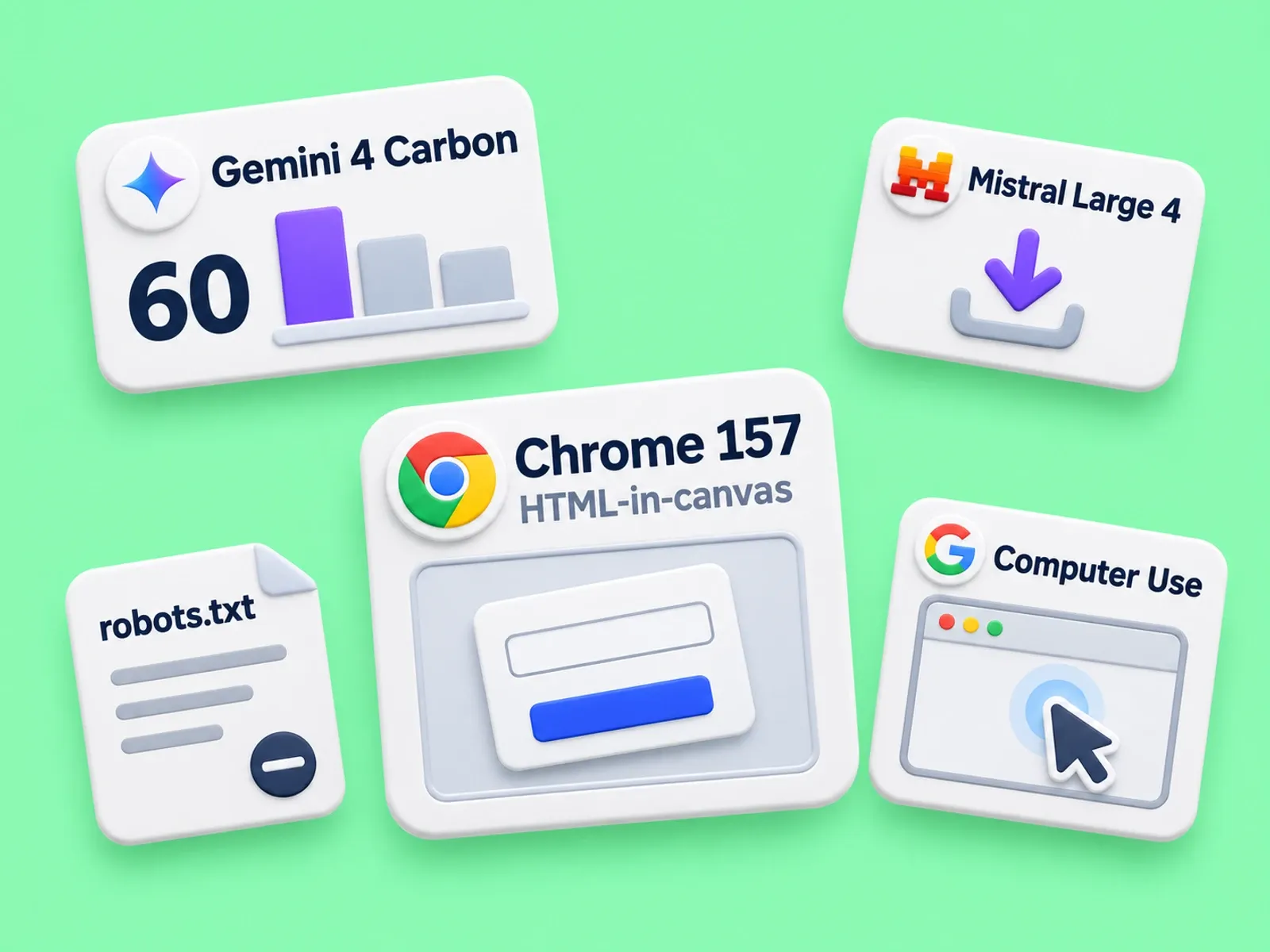
Google’s new Gemini 4 Carbon takes the lead in Artificial Analysis’ Intelligence Index, but only some security teams can use it for now.
Chrome 157 can now draw text and forms on a canvas, and they’ll work with a keyboard and screen readers.
Keeping your site out of AI training should get easier, because Google and OpenAI both plan to follow the same robots.txt rule.
And you can also build browser agents with the Gemini API, add plugins to Antigravity, download Mistral Large 4, and get OpenAI API credits with ChatGPT Pro or Business.
Gemini 4 Carbon and Mistral Large 4
Google announced Gemini 4 Carbon on October 28 and says it’s the strongest model it has. It’s made for long engineering and security tasks. According to Google, its teams have seen Carbon run for days on one problem, like finding the cause of a subtle bug in a large codebase and patching it.
In the company’s own tests, Carbon got 88.2% on SEC-bench Pro, where a model has to find security bugs in real software.
A group of cyber defenders gets Carbon first. Later, it goes to more trusted partners through the Fairwind Program. That program gives high-priority defenders (like governments, healthcare providers, and phone companies) early access to advanced models.
According to Google, Carbon comes to developers, businesses, and consumers “as soon as possible”, after the company gets more feedback and improves the model’s guardrails.
The introductory price will be the same as Gemini 4 Argon’s, $2 input / $10 output per million tokens, with cached input 95% off. Once that period ends, the regular price is $4 input / $20 output per million tokens.
Carbon also came first on Artificial Analysis’ Intelligence Index with 60, one point more than Claude Opus 5.5 at max effort. And at the regular price, one task on the index costs $7.76 with Carbon, against $10.04 with Opus 5.5.
If you have been following my articles, you probably noticed that the scores and costs in the ranking below are different from the ones in last week’s Brief. Those numbers are from version 5 of the index. Artificial Analysis launched it on October 27 with a different set of tests. That’s why you can’t compare the scores and costs in the ranking below with the ones in last week’s Brief.
Mistral, the French AI company, released the weights of Mistral Large 4 on October 29. That makes it a new contender here among open-weight models, the ones you can download, run on your own servers, and change yourself. It has about 1 trillion parameters, but each token only goes through 49 billion of them. Its context window is 1M tokens.
Mistral Large 4 got 26 on Artificial Analysis’ Intelligence Index, which puts it 27th in the ranking below. That’s below all 12 models at the top, but above the median of 23 for open-weight models of a similar size. The model costs $0.70 input / $2.10 output per million tokens on Mistral’s API.
| # | Model | Intelligence Index | Cost per Index task |
|---|---|---|---|
| 1 | Gemini 4 Carbon (high)New | 60 | $7.76 |
| 2 | Claude Opus 5.5 (max) | 59 | $10.04 |
| 3 | GPT-6 Astra (max) | 57 | $6.24 |
| 4 | GPT-6.1 Sol (max) | 55 | $1.27 |
| 5 | Claude Sonnet 5.5 (max) | 55 | $10.02 |
| 6 | Claude Opus 5.5 (high) | 52 | $3.46 |
| 7 | GPT-6.1 Terra (max) | 51 | $0.96 |
| 8 | Gemini 4 Argon (high) | 50 | $7.68 |
| 9 | Muse Wonder Full (max) | 50 | No API price |
| 10 | Claude Fable 5.1 (xhigh) | 50 | $10.85 |
| 11 | Claude Fable 5.1 (high) | 47 | $7.54 |
| 12 | Kimi K3.1 Pro | 46 | $3.68 |
| 27 | Mistral Large 4 (high)New | 26 | $2.06 |
| # | Model | Decision Index | Cost per million tasks |
|---|---|---|---|
| 1 | d1-ultra | 65 | $31.80 |
| 2 | SubQ Snap 1.1 | 65 | $30.34 |
| 3 | Elephant 9B | 65 | $8.39 |
| 4 | Drex MaxNew | 64 | $23.03 |
| 5 | Drex 2.0New | 58 | $41.36 |
| 6 | Jev 1.14 | 57 | $41.53 |
| 7 | Decider v1.2 | 56 | $15.14 |
| 8 | GLiDE | 54 | $119.02 |
| 9 | Microsoft-Decision-1 | 54 | $30.71 |
| 10 | Mercury Decide | 53 | $15.20 |
| Chrome’s Decisions API (Gemma 4 on CPU) | Not scored | $0 |
Artificial Analysis also added decision models from Nace.AI to its Decision Index. Drex Max got 64, right behind three models at 65. Drex 2.0 has open weights and scored 58.
Chrome 157
Chrome 157 came out on November 3 with HTML-in-canvas, a way to draw real HTML elements, like a form, into a <canvas>.
When a game or a chart is drawn on a canvas, its text and form fields are just pixels. People using a screen reader can only hear that text if the app keeps a hidden copy of it in HTML too. Find in page can’t find it either.
The elements you draw with HTML-in-canvas stay real. You can type in a drawn input, select its text, reach it with Tab, and use it with a screen reader, like the rest of the page. The Chrome team says “Find in page” works on drawn elements too, along with translation and autofill.
The canvas needs content="drawable" for the browser to lay out the elements inside it.
Then you mark the elements you want to draw with a drawable attribute.
Whenever one of those elements looks different, like after you type in it, the browser fires a paint event on the canvas.
In your handler for that event, you draw the element again with drawElementImage().
If it’s a 2D canvas, that call moves the real element to the spot where you drew it.
That way, a click on the drawn input goes to the real one.
Here’s a canvas with a small form in it:
html
<!-- A real form inside the canvas, marked to be drawn -->
<canvas width="400" height="200" content="drawable">
	<form drawable>
		<label for="name">Name</label>
		<input id="name">
	</form>
</canvas>

<script>
	const $canvas = document.querySelector( 'canvas' );
	const $form = document.querySelector( 'canvas form' );
	const ctx = $canvas.getContext( '2d' );

	// Clear the canvas and draw the form again every time it changes.
	$canvas.onpaint = () => {
		ctx.reset();
		ctx.drawElementImage( $form, 100, 0 );
	};
</script>
I wrote about HTML-in-canvas in July, back when it was in an origin trial and sites had to sign up to turn it on.
The trial version I used in July needed a layoutsubtree attribute on the canvas.
That’s gone now, don’t use it.
Chrome 157 ships content="drawable" on the canvas and drawable on the elements instead.
Firefox and Safari don’t support HTML-in-canvas yet, but Chrome’s status page says early work on it has started in WebKit, the engine behind Safari.
To check for support, set content="drawable" on a new canvas and test whether canvas.content returns "drawable".
Another new feature in Chrome 157 has nothing to do with the canvas.
It adds five new methods for inserting HTML into a page: beforeHTML(), afterHTML(), appendHTML(), prependHTML(), and replaceWithHTML().
Each one puts a string of HTML in one place, like $list.appendHTML( html ) adds it at the end of $list.
Before they add the HTML, they remove anything that could run a script, like an onerror attribute.
Until now you’d use insertAdjacentHTML() for this, which takes the place as a string, like 'beforeend', and adds the HTML exactly as it is.
That method didn’t change.
The main difference is that the new ones remove any scripts, while insertAdjacentHTML() doesn’t.
If you need the new methods to insert the HTML exactly as it is, too, there are Unsafe versions, like appendHTMLUnsafe().
None of these methods are in Firefox or Safari yet, though.
AI training and robots.txt
Google and OpenAI both said on October 30 that they plan to support a shared robots.txt rule for AI training. The rule lets you tell AI companies whether they can train their models on your pages. Google aims to support it in 2027, along with other AI providers. OpenAI wants to implement it “in the coming months”.
The robots.txt file at the root of a site has the rules for crawlers (the bots that download pages), with a group of rules for each bot.
To keep your pages out of AI training today, you add a group for each company, like Google-Extended for Gemini and GPTBot for OpenAI’s models.
The shared rule is written like any other group, except you put __usage_ai-training in the User-Agent line, where a bot’s name would normally be.
It takes two lines to opt a whole site out of AI training:
User-Agent: __usage_ai-training
Disallow: /
A User-Agent: * group applies to every bot and still doesn’t cover AI training.
And the __usage_ai-training group doesn’t control crawling, or change the rules you already wrote for named bots.
Google plans to treat an opt-out in that group as if the site had disallowed Google-Extended, unless the file has a separate Google-Extended group.
That doesn’t affect Google Search, because Google-Extended doesn’t change whether your site shows up there or how it ranks.
Google-Extended does cover Gemini Apps, though.
Sites that specifically allow it can appear in answers in those apps and get clicks from them.
You can still make a separate decision for Gemini with its own Google-Extended group.
Gemini API
Computer Use is now generally available in the Gemini API. Google announced it on October 30. With it, you can build agents that use a browser, a phone, or a desktop computer.
The model doesn’t click or type anything itself. You send it a task and get back the next action, like a click on a certain spot on the screen or some text to type. Your code carries out that action, for example with Playwright in a browser, and sends the model a new screenshot. This repeats until the task is done.
In the docs, Google lists automated testing of web apps and user flows as one of the uses. For example, you could describe a flow like a signup in plain words and have an agent go through it in a browser.
Google recommends using it with Gemini 3.8 Flash, the model in the example below.
With the @google/genai package for JavaScript, you turn Computer Use on as a tool when you call ai.interactions.create().
Each action comes back as a function call in the response’s steps.
js
import { GoogleGenAI } from '@google/genai';

// GoogleGenAI uses the API key in the GEMINI_API_KEY environment variable.
const ai = new GoogleGenAI();

// Send the task, with Computer Use on for a browser.
const interaction = await ai.interactions.create( {
	model: 'gemini-3.8-flash',
	input: 'Open localhost:3000 and sign up with a test email.',
	tools: [ { type: 'computer_use', environment: 'browser' } ],
} );

// Print each action, like a click with its x and y.
for ( const step of interaction.steps ) {
	if ( step.type === 'function_call' ) {
		console.log( step.name, step.arguments );
	}
}in the figure below plays that whole loop on a sign-up page.
Every step an agent like that takes is another request with another screenshot. If the agent gets stuck on one step, it can keep sending them.
Google Cloud’s spend caps help with that. They came out of preview the same day. A spend cap is a monthly limit on what one service can cost in one project.
When the estimated cost goes over the limit, new requests to that service stop until the next month. The ones already running still finish, though. For AI services, the cap uses live cost estimates and takes effect within minutes.
A cap also limits what you pay if an API key leaks. Google suggests starting with low caps on test projects and on the projects where you try out AI agents.
Antigravity
Antigravity got a Plugin Marketplace on October 29, in both the app and the CLI. A plugin connects Antigravity’s agent to another service and gives the agent the instructions for using that service, all in one package with a version number.
For example, the Figma plugin gives the agent the design details it needs to write code from your Figma files. Before, you had to set up the connection and the instructions by hand, in each repo or in local config files.
Antigravity’s changelog says the Marketplace has Google’s own plugins, like Firebase, and plugins from partners like Figma and Stripe.
You can install one from the app, or with agy plugin install <plugin-name> in the terminal.
Anyone can build a plugin and share it from a GitHub repository. Companies that want an official listing in the Marketplace apply through a partner form.
New in the Claude and OpenAI APIs
The Claude API has message threads now, in beta. Anthropic added them on November 2.
Without a thread, the API gets the whole conversation from your app on every turn and has to check and process all of it again. A thread keeps the conversation on Anthropic’s servers, which means your later requests only include the new messages and the ID of the previous response.
Anthropic says threads keep the time to first token (how long you wait before the answer starts) lower as the conversation grows. They help the most with agents that make a lot of requests in a row during a task.
Threads expire 5 minutes after their last request, though. After that, continuing one gets you a 404 error. To start over, you have to send the whole conversation again.
That’s why your app should keep its own copy of the conversation. The Claude SDKs have a thread helper that resends it for you.
OpenAI started giving API credits to ChatGPT Pro and Business subscribers on October 28. If you’re on ChatGPT Pro, the monthly credit matches the price of your tier, from $100 to $500. Business workspaces get $20 per Standard seat and $100 per Premium seat, in one pool of up to $500 a month.
Unused credits expire at the end of the billing cycle.
You claim them by linking an API organization you own, from ChatGPT’s billing settings or from OpenAI’s API Platform. They work on OpenAI’s API, but not on Codex through API keys. They don’t raise your ChatGPT or Codex limits either.
Oh, and Anthropic already added monthly API credits to Claude’s Max, Ultra, and Team plans on October 7.
Want more of these in your Google results?